You've already forked UnrealEngineUWP
mirror of
https://github.com/izzy2lost/UnrealEngineUWP.git
synced 2026-03-26 18:15:20 -07:00
 a7f9391231
This represents UE4/Main @ 14768117

For ReleaseObjectVersion.h
#lockdown Marcus.Wassmer

[CL 14811440 by Marc Audy in ue5-main branch]
crunchersharp
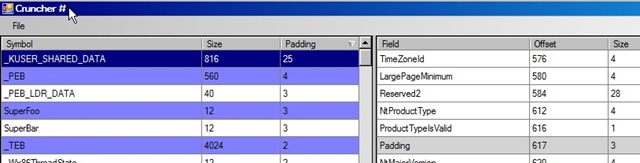
Program analyses debugger information file (PDB, so Microsoft Visual C++ only) and presents info about user defined structures (size, padding, etc).
Original blog post: http://msinilo.pl/blog/?p=425
Getting Started
Windows 10 Visual Studio 2019
- Open command prompt or PowerShell as Admin
- Find the directory where your
msdiadll is located, which by default is loacted with you Visual Studio installation:
cd C:\Program Files (x86)\Microsoft Visual Studio\2019\Professional\Common7\IDE
- Register the
msdia140dll manually:
regsvr32 msdia140.dll
- Build the MSVC Project that you want with full debug symbols. By default in VS 2019/2017 it is set to
use
/debug:fast, we need/debug:full. This setting is located in Visual Studio project settings atLinker > Debugging > Generate Debug Info.
- To change this in UE projects you will need set the Unreal Build Tool flag called
bUseFastPDBLinking. Currently (4.24) the default value is to be turned off, which is what you want for using Cruncher.
- Open up Cruncher in Visual Studio
- Right click on the C# Project and select "Properties"
- Go to "Debug" and Select
Enable native code debuggingat the bottom.
- Make sure you have "All Configurations" selected here to ensure you have it in both Release and Debug
- Create an
x86build configuration by clicking the Solution Platforms dropdown and selectingConfiguration Manager...then clicking on theActive Solution Platformand creating a newx86setting.
- This has to be x86 due to the
msdia140DLL, if you don't do this you may get unresolved symbols in Release modes.