
6.6 KiB
Prerequisites for NEW users
Please, make sure you have:
- a proper power supply according to the board manufacturer requirements (basic usage example: 5V/2A with DC Jack barrel OR thick USB cable)
- a reliable SD card (see below "How to prepare a SD card?")
What to download?
Each board is fully supported with up to four basic system options:
- Debian Wheezy, Jessie, Ubuntu Trusty, Xenial
Some boards also have a desktop version Debian Jessie.
Legacy or Vanilla?
Both kernels, where exists, are stable and production ready, but you should use them for different purpuses since their basic support differ:
- legacy: video acceleration, NAND support, connecting displays
- vanilla: headless server, light desktop operations
How to check download authenticity?
All our images are digitally signed and therefore it's possible to check theirs authentication. You need to unzip the download package and issue those commands (Linux):
# download my public key from the database
gpg --keyserver pgp.mit.edu --recv-key 9F0E78D5
gpg --verify Armbian_5.18_Armada_Debian_jessie_3.10.94.img.asc

# proper respond
gpg: Signature made sob 09 jan 2016 15:01:03 CET using RSA key ID 9F0E78D5
gpg: Good signature from "Igor Pecovnik (Ljubljana, Slovenia) <igor.++++++++++++@gmail.com>"

# wrong repond. Not genuine Armbian image!
gpg: Signature made Sun 03 Jan 2016 11:46:25 AM CET using RSA key ID 9F0E78D5
gpg: BAD signature from "Igor Pecovnik (Ljubljana, Slovenia) <igor.++++++++++++@gmail.com>"
It is safe to ignore WARNING: This key is not certified with a trusted signature!
How to prepare a SD card?
Important note: Make sure you use a good & reliable SD card. If you encounter boot or stability troubles in over 95 percent of the time it's either insufficient power supply or related to SD card (bad card, bad card reader, something went wrong when burning the image). Armbian can simply not run on unreliable hardware so checking your SD card with either F3 or H2testw is mandatory if you run in problems. Since counterfeit SD cards are still an issue checking with F3/H2testw directly after purchase is highly recommended.
7z and zip archives can be uncompressed with 7-Zip on Windows, Keka on OS X and 7z on Linux (apt-get install p7zip-full). Raw images can be written with Etcher (all OS):
# Linux example: /dev/sdx is your sd card device
sudo dd bs=1M if=filename.img of=/dev/sdx
sync
# OS X example: /dev/[r]diskx is your sd card device:
diskutil unmountDisk diskx && dd bs=1m if=filename.img of=/dev/rdiskx && diskutil eject diskx
Image writing takes up to 2 minutes on a good SD card.
Also important: SD cards are optimised for sequential reads/writes as it's common in digital cameras. This is what the speed class is about. And while you shouldn't buy or use any card rated less than class 10 you should especially take care to choose one that is known to show high random I/O performance since this is way more performance relevant when used with any SBC. Even cards advertised as being 'high speed' can show horribly low random IO performance in reality.
You won't be wrong picking one of these:

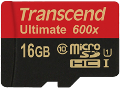
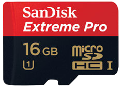
Detailed information regarding SD card performance:
- SD card performance with Armbian - Thomas Kaiser
- Raspberry Pi microSD card performance comparison - Jeff Geerling
- The Best microSD Card - Kimber Streams
How to boot?
Insert SD card into a slot and power the board. First boot takes around 3 minutes then it reboots and you will need to wait another one minute to login. This delay is because system updates package list and creates 128Mb emergency SWAP on the SD card.
Normal boot (with DHCP) takes up to 35 seconds with a class 6 SD CARD and cheapest board.
How to login?
Login as root on console or via SSH and use password 1234. You will be prompted to change this password at first login. You will then be asked to create a normal user account that is sudo enabled (beware of default QWERTY keyboard settings at this stage).
Desktop images starts into desktop without asking for password. To change this add some display manager:
apt-get install lightdm
... or edit the contents of file:
/etc/default/nodm
and change the autologin user.
How to update?
If you are upgrading to version 5.20 you need to execute those commands:
apt-get update
apt-get upgrade
apt-get install -f
apt-get upgrade
apt-get autoremove -y
Upgrades from 5.20 will go just with:
apt-get update
apt-get upgrade
Update process can take hours in case of using cheap SD card and/or under heavy load.
This will not only update distribution packages (Debian/Ubuntu) but also updates Armbian kernel, u-boot and board support package if available. So if you've seen in the list of updated packages the names u-boot or linux the following command is required for changes to take effect:
reboot
How to add users?
To create a normal user do this:
adduser MyNewUsername
Put user to sudo group:
usermod -aG sudo MyNewUsername
How to install to eMMC, NAND, SATA & USB?

Required condition:
NAND:
- kernel 3.4.x and NAND storage
- pre-installed system on NAND (stock Android or other Linux)
eMMC/SATA/USB:
- any kernel
- onboard eMMC storage or permanently attached SATA or USB storage
Start the install script:
nand-sata-install
and follow the guide. You can create up to three scenarios:
- boot from SD, system on SATA / USB
- boot from eMMC / NAND, system on eMMC/NAND
- boot from eMMC / NAND, system on SATA / USB
How to set fixed IP?
By default your main network adapter's IP is assigned by your router DHCP server.
iface eth0 inet dhcp
change to - for example:
iface eth0 inet static
 	address 192.168.1.100
    netmask 255.255.255.0
	gateway 192.168.1.1